
Gmail 550 5.7.26 means Gmail rejected your outgoing email because sender authentication failed or the message violated an SPF or DMARC policy. The problem usually involves incorrect SPF or DKIM settings, an unauthorized sending server, or domain authentication that doesn’t match the sender’s address.
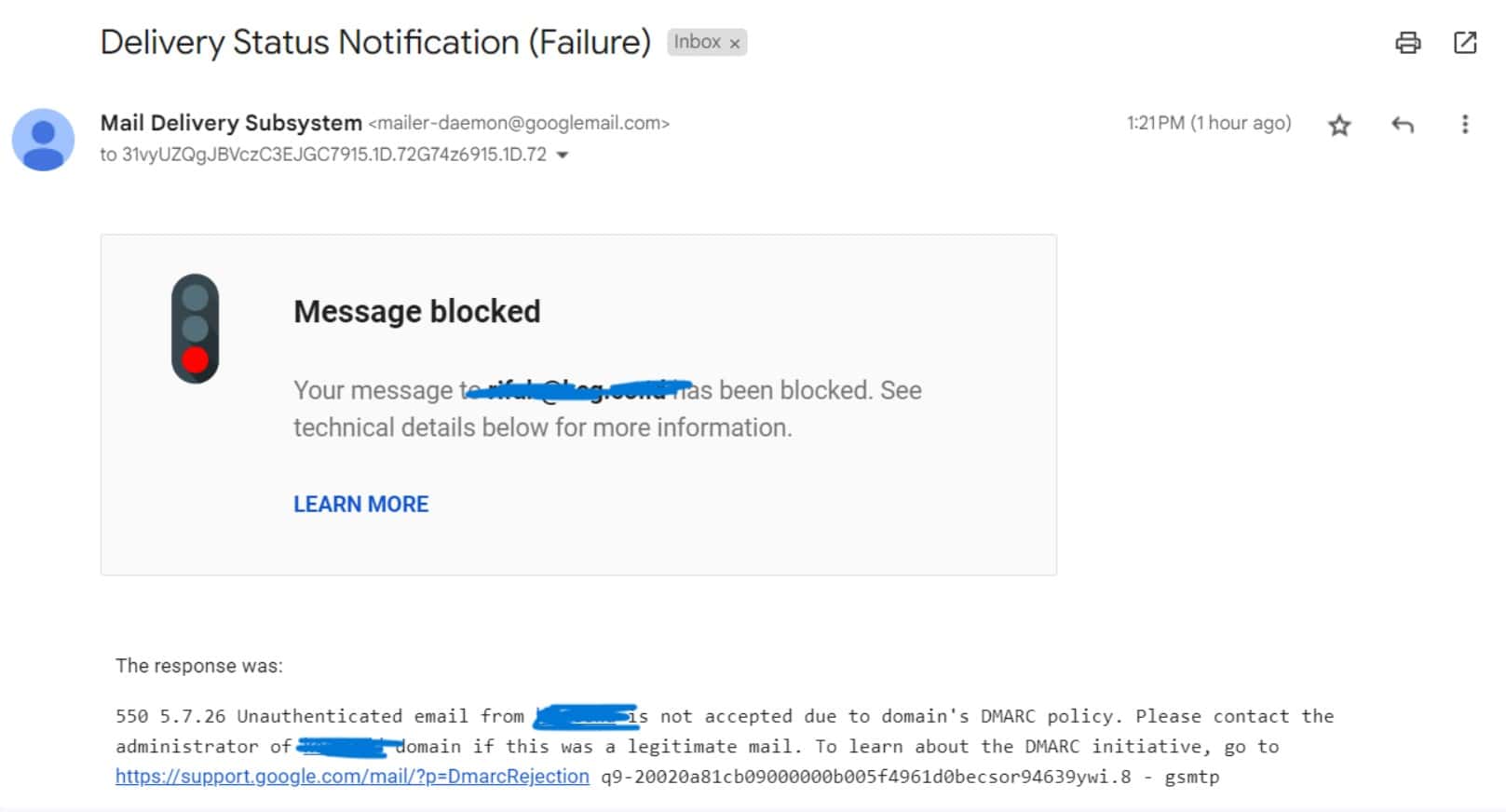
How to Fix Gmail 550 5.7.26
Step 1: Check the Exact Gmail Error Message
Open the bounced email and look for 550 5.7.26.
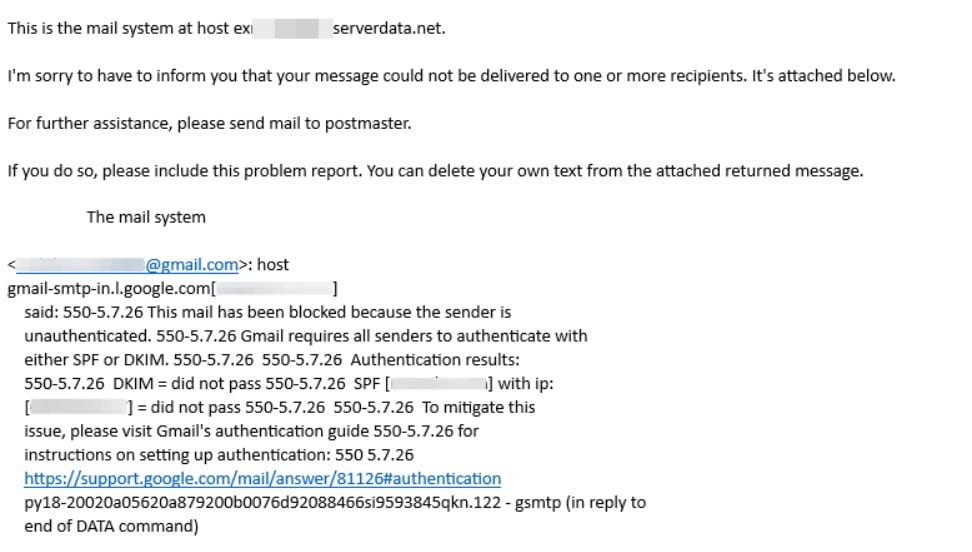
Google documents three common variations:
- SPF and DKIM did not pass: Gmail couldn’t authenticate the sending server or message.
- SPF hard fail (
-all): The sending IP address isn’t authorized by the envelope sender domain’s SPF record. - Rejected due to DMARC policy: The message failed DMARC authentication, including the required domain alignment.
The exact wording tells you which setting needs attention.
If Gmail previously accepted email from the same sending service, open one of those messages in Gmail, click the three-dot menu next to Reply → Show original, and check the SPF, DKIM, and DMARC results.
Step 2: Identify Your Actual Email Sending Provider
Confirm which service sends your outgoing email. It might be your hosting server, Google Workspace, an SMTP relay, or a third-party email service.
Check that the application uses the correct outgoing SMTP server and that the provider is configured to authenticate your domain.
There are two different problems to watch for:
- Sending provider misconfiguration: Your website or email application uses the wrong SMTP server, or the provider hasn’t enabled DKIM signing for your domain.
- Incorrect DNS configuration: Your application uses the correct provider, but your DNS records still authorize an old or different email service.
Fix the sending configuration or DNS records according to which problem you find.
Step 3: Check and Fix Your SPF Record
SPF identifies which servers are authorized to send email for a domain.
On Linux or macOS with dig installed, run:
dig +short TXT example.comReplace example.com with the SPF domain identified in the bounce message (the envelope sender or MAIL FROM domain).
Check that:
- There is only one SPF TXT record beginning with
v=spf1for that domain. - The record authorizes your actual sending server or email provider.
- Any required SPF
include:values match your provider’s documentation.
If your SPF record references an old provider, update the existing record to authorize the current service. Don’t publish another SPF record or weaken a -all policy simply to bypass the rejection.
For more information, see Veeble’s guide to configuring email DNS records.
Step 4: Verify Your DKIM Configuration
DKIM adds a digital signature that Gmail can verify using your domain’s DNS records.
Find the DKIM selector supplied by your email provider and check its DNS record:
dig +short TXT selector._domainkey.example.comReplace selector and example.com with your actual values.
Some providers use a CNAME instead of a directly published TXT record. Check that when applicable:
dig +short CNAME selector._domainkey.example.comIf the record is missing or incorrect, publish the exact DNS value supplied by your provider. Also confirm that DKIM signing is enabled on the sending service.
Important: Publishing a DKIM record alone won’t fix authentication if the outgoing server isn’t signing messages with the corresponding key.
Step 5: Check DMARC and Domain Alignment
If Gmail specifically mentions DMARC, check your domain’s DMARC record:
dig +short TXT _dmarc.example.comGoogle requires SPF or DKIM for regular senders. Senders exceeding 5,000 messages per day to personal Gmail accounts must meet additional requirements, including SPF, DKIM, and DMARC.
For DMARC to pass, at least one passing authentication method must align with the domain in the visible From: address.
For example, if your email comes from [email protected], authenticating only an unrelated provider domain may still cause DMARC to fail.
Configure your provider to use an aligned DKIM signing domain or SPF envelope sender domain. Don’t disable or downgrade your DMARC policy to work around failed authentication.
Step 6: Send a Test Email to Gmail
After making changes, allow time for DNS updates to become visible. Propagation depends on DNS caching, record TTL values, and your DNS provider, so there is no guaranteed completion time.
Send a fresh email from the affected application to a Gmail address.
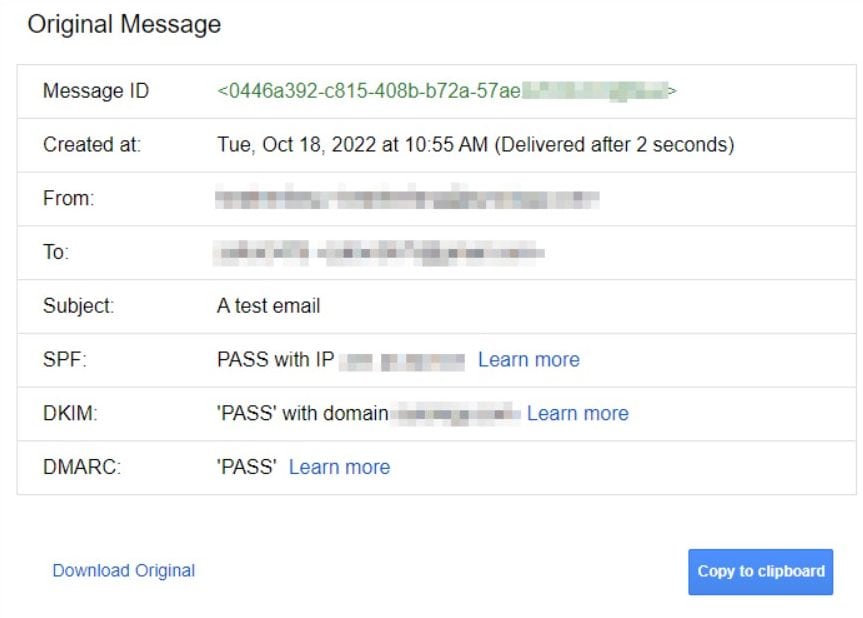
If the email arrives, open Show original and verify that SPF or DKIM passes. Ideally, both should pass, along with DMARC where applicable.
Still not working? Check the new bounce message for the exact failure. If your email is hosted with Veeble, contact support with the redacted error message, sending domain, and approximate sending time so the team can investigate the SMTP logs and outgoing server configuration.
For the latest authentication requirements, refer to Google’s official email sender guidelines.
