
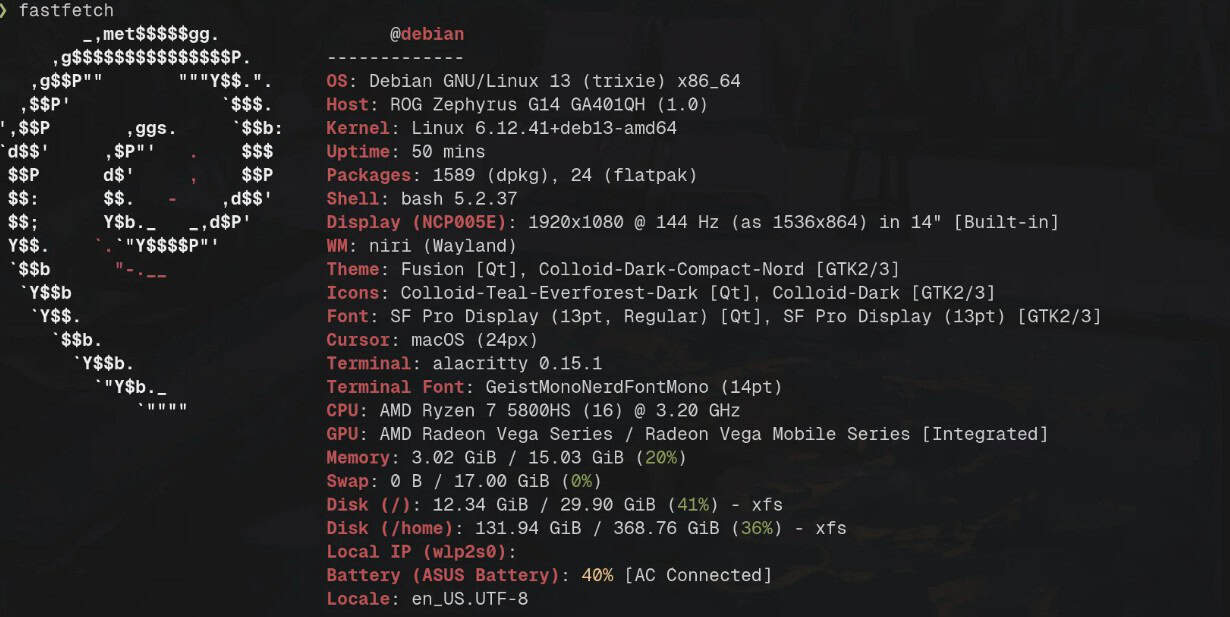
Debian supports a direct upgrade from Debian 12 (Bookworm) to Debian 13 (Trixie) using APT. The process is straightforward, but on a VPS or production server, a little preparation can save you from a difficult recovery.
This guide covers the shortest safe upgrade path.
Before You Start
Before changing anything:
- Take a full backup or VPS snapshot.
- Make sure you have root or sudo access.
- Keep console access available in case SSH or networking fails after reboot.
- Disable third-party repositories until the upgrade is complete.
- Make sure there is enough free disk space, especially under
/varand/boot.
If upgrading through SSH, running the upgrade inside tmux or screen is a good precaution.
Important: Debian supports this upgrade path from Debian 12 only. Debian 13 should not be used as an in-place upgrade target for a 32-bit i386 installation.
Step 1: Update Debian 12 First
Check your current Debian version:
cat /etc/os-releaseYou should see Debian 12 with the codename bookworm.
Now update the existing system completely:
sudo apt update
sudo apt full-upgrade
Reboot if a new kernel or other important system packages were installed:
sudo rebootAfter reconnecting, check for package problems or held packages:
sudo dpkg --audit
sudo apt-mark showhold
dpkg --audit should normally return no output. Review any held packages before continuing.
Step 2: Change the Repositories from Bookworm to Trixie
First, find all repository entries that still reference Bookworm:
grep -R "bookworm" /etc/apt/sources.list /etc/apt/sources.list.d/ 2>/dev/nullEdit your official Debian repositories and change:
bookworm
bookworm-updates
bookworm-security
to:
trixie
trixie-updates
trixie-security
For example, a traditional sources.list configuration may look similar to:
deb https://deb.debian.org/debian trixie main non-free-firmware
deb https://deb.debian.org/debian trixie-updates main non-free-firmware
deb https://security.debian.org/debian-security trixie-security main non-free-firmware
Keep any additional components such as “contrib” or “non-free” if your server already requires them.
Do not blindly change third-party repositories from Bookworm to Trixie. Disable them and enable them again only after confirming that the vendor supports Debian 13.
Step 3: Run the Minimal Upgrade
Refresh APT using the new Debian 13 repositories:
sudo apt updateCheck the output for repository errors before continuing.
Debian recommends performing the upgrade in two stages. Start with:
sudo apt upgrade --without-new-pkgsThis upgrades packages that do not require new packages to be installed or existing ones to be removed.
Read any configuration prompts carefully, especially if you have customised services such as SSH, Nginx, Apache, MariaDB, or networking.
Step 4: Complete the Debian 13 Upgrade
Now run the full upgrade:
sudo apt full-upgradeAPT will install the remaining Debian 13 packages, handle dependency changes, and remove packages that conflict with the new release.
Review the package removal list before confirming it. If APT wants to remove something critical to your server, investigate before continuing.
Once the upgrade finishes, reboot:
sudo rebootStep 5: Verify Debian 13
After the server comes back online, confirm the new release:
cat /etc/os-releaseYou should now see:
VERSION_ID="13"
VERSION_CODENAME=trixie
Check the running kernel:
uname -rThen check for failed services:
sudo systemctl --failedIf this returns no failed units, the main system services have started normally.
Clean Up Old Packages
Review packages that are no longer required:
sudo apt autoremoveConfirm the removal list before proceeding.
Debian 13 also supports the newer DEB822 repository format. If your server still uses the older sources.list format, you can convert it with:
sudo apt modernize-sourcesFinally, update the package list once more:
sudo apt updateConclusion
The safest Debian 12 to Debian 13 upgrade is simple: fully update Bookworm, back up the server, switch the official repositories to Trixie, run the minimal upgrade, then complete the upgrade with apt full-upgrade.
For production servers, always keep console access and a recent snapshot available until you have confirmed that networking, web servers, databases, and other important services are working normally.
Prefer a Fresh Debian Server?
Start with a new VPS and migrate your applications instead of upgrading your existing server in place.
