
If you see Windows Update error 0x80028017 while installing an update in Windows 11, the update may fail to download or complete the installation.
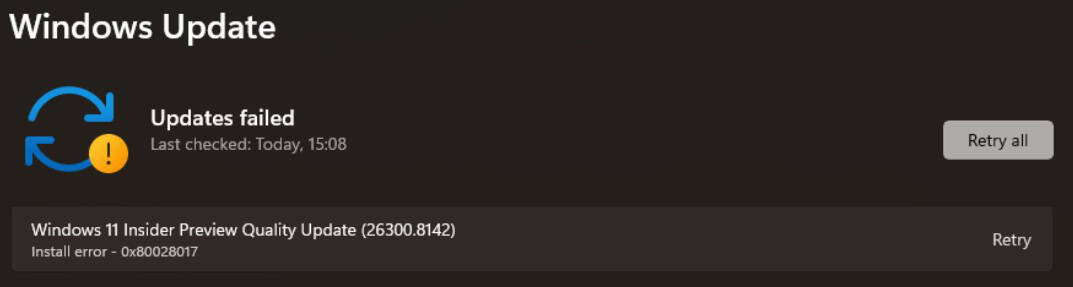
The error has also been reported while installing Windows 11 Insider Preview updates, where problems with Windows Update components can prevent a build from installing correctly.
Follow the methods below one by one to fix the issue.
1. Restart Windows and Try the Update Again
Before making any changes, restart your computer and retry the update.
- Open Start > Settings > Windows Update.
- Click Check for updates.
- Download and install the available update.
- Restart the computer if prompted.
Also, disconnect unnecessary USB devices such as external drives, printers, or adapters before retrying the update.
If the error 0x80028017 appears again, continue with the next method.
2. Run the Windows Update Troubleshooter
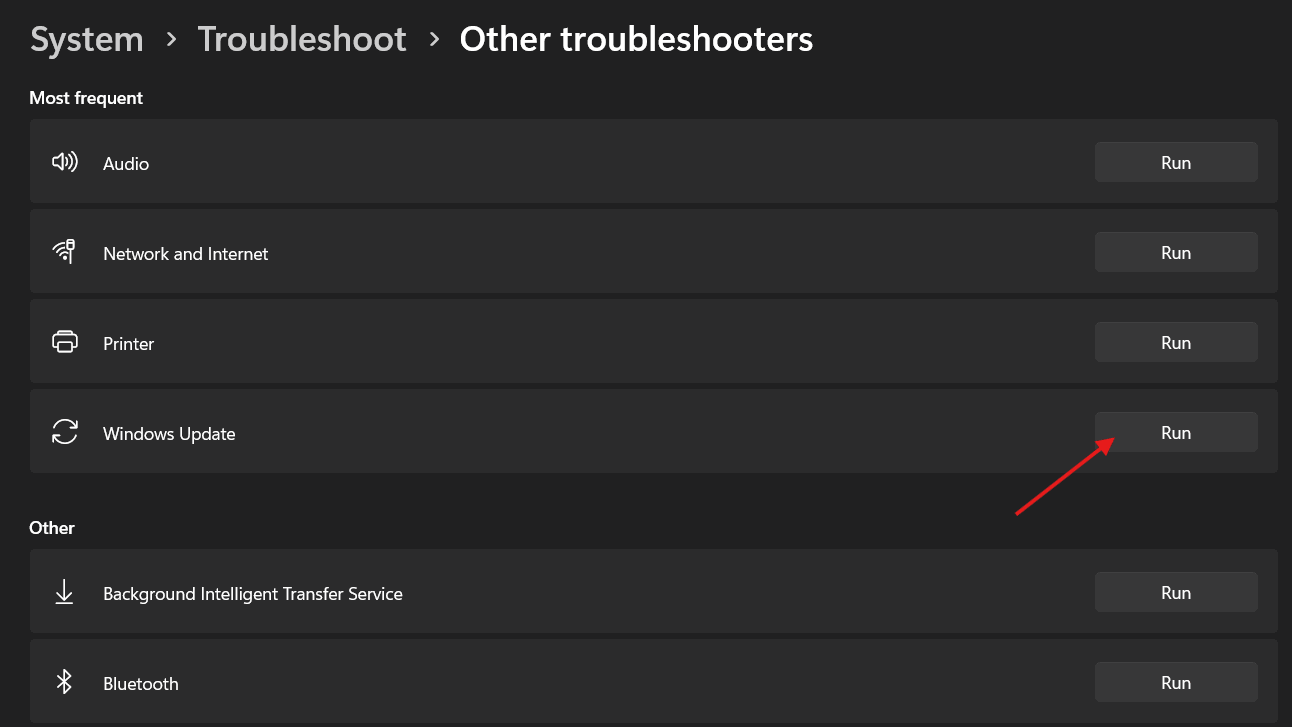
Windows 11 includes a built-in troubleshooter that can detect and repair common Windows Update problems. Microsoft recommends running it when an update fails with an error code.
- Open Settings.
- Go to System > Troubleshoot > Other troubleshooters.
- Find Windows Update.
- Click Run.
- Follow the instructions displayed on the screen.
- Restart your computer after the troubleshooter completes.
Now go back to:
Settings > Windows Update > Check for updates
Try installing the update again.
3. Repair Windows Using DISM and SFC
Corrupted Windows components or system files can prevent Windows Update from completing successfully.
Open Command Prompt or Windows Terminal as administrator.
First, run:
DISM.exe /Online /Cleanup-Image /RestoreHealthAllow the command to complete.
Then run:
sfc /scannowWait until the scan reaches 100%.
DISM repairs the Windows component store, while System File Checker checks protected Windows system files and replaces damaged files when possible.
Restart your computer and check for Windows updates again.
If SFC displays “Windows Resource Protection could not perform the requested operation,” follow our guide on fixing the Windows Resource Protection error.
4. Reset Windows Update Components
If the Windows Update cache or related services are causing the 0x80028017 error, resetting the Windows Update components may help.
Open Command Prompt as administrator and run the following commands one by one:
net stop wuauserv
net stop bits
net stop cryptsvc
net stop msiserver
Next, rename the Windows Update cache folders:
ren C:\Windows\SoftwareDistribution SoftwareDistribution.old
ren C:\Windows\System32\catroot2 catroot2.old
Now restart the services:
net start msiserver
net start cryptsvc
net start bits
net start wuauserv
Restart your computer.
Windows will automatically create new SoftwareDistribution and catroot2 folders when Windows Update runs again.
Microsoft also recommends resetting Windows Update services and cached update files when troubleshooting update installation problems.
After restarting, go to:
Settings > Windows Update > Check for updates
5. Check Available Disk Space
Windows needs enough free disk space to download, extract, and install updates.
To check your available storage:
- Open Settings.
- Navigate to System > Storage.
- Check the free space available on your Windows drive.
If the drive is almost full, remove unnecessary temporary files or move large files to another drive.
You can also use:
Settings > System > Storage > Temporary files
to remove files that are no longer required.
Insufficient storage is one of the issues Microsoft recommends checking when troubleshooting Windows Update failures.
6. Reinstall the Current Windows Version Using Windows Update
Windows 11 includes a repair option that can reinstall the current version of Windows without removing your applications, personal files, or settings.
This is useful if DISM, SFC, and resetting Windows Update did not resolve error 0x80028017.
- Open Settings.
- Navigate to System > Recovery.
- Find Fix problems using Windows Update.
- Click Reinstall now.
- Follow the on-screen instructions.
- Restart the computer after the repair installation completes.
This process reinstalls the current Windows version and repairs Windows system files and components while preserving your apps, files, and settings.
Note: The Fix problems using Windows Update option may not appear on some managed computers or older Windows 11 installations.
7. Manually Install the Failed Windows Update
If only one particular cumulative or security update is failing, you can try installing it manually.
- Open Settings > Windows Update > Update history.
- Find the failed update and note its KB number, for example
KB50xxxxx. - Open the Microsoft Update Catalog.
- Search for the KB number.
- Download the version that matches your Windows architecture.
- Run the downloaded update package.
- Restart the computer after installation.
After restarting, check Windows Update again.
If you are trying to install a Windows feature update rather than a normal cumulative update, Microsoft also provides the Windows 11 Installation Assistant. The Installation Assistant is intended for feature updates rather than routine quality updates.
8. If You Are Using a Windows Insider Preview Build
Error 0x80028017 has also appeared during Windows 11 Insider Preview quality updates.
For Insider builds, Microsoft staff recommends repairing the Windows image, resetting Windows Update components, and, if the problem continues, performing an in-place repair using an appropriate Windows 11 Insider ISO when available.
Before proceeding, check your Windows build by pressing:
Windows + R
Enter:
winverThen check whether the failed update belongs to the Dev, Beta, Canary, or Release Preview channel.
If the problem is specific to an Insider build, you may also need to wait for a newer build if Microsoft has not released an appropriate ISO or fix yet.
9. Reinstall Windows as a Last Resort
If none of the previous methods fixes Windows Update error 0x80028017, consider reinstalling Windows using official Windows 11 installation media.
Before reinstalling Windows, make sure you back up all important files.
Microsoft recommends considering Windows recovery or reinstall options when update-related problems cannot be repaired through normal troubleshooting.
If you need installation media, you can also follow our guide on how to create a bootable USB in Windows using CMD.
Conclusion
Windows Update error 0x80028017 can usually be addressed by repairing Windows Update components and system files.
Start with the Windows Update troubleshooter, then run DISM and SFC. If that does not work, reset the Windows Update cache and services. For persistent Windows 11 problems, the built-in Fix problems using Windows Update repair option is a useful step before performing a full reinstall.
If you are seeing a similar Windows Update problem with error 0x80070017, refer to our guide on fixing error code 0x80070017 during Windows Update.
Frequently Asked Questions
What is Windows Update error 0x80028017?
Error 0x80028017 can appear when Windows 11 fails to install an update. Recent reports on Microsoft-hosted support pages have also shown the error during Windows 11 Insider Preview quality updates.
Can DISM and SFC fix error 0x80028017?
They can help when damaged Windows system files or component-store problems are contributing to the update failure. Run DISM.exe /Online /Cleanup-Image /RestoreHealth first, followed by sfc /scannow.
Will resetting Windows Update delete my personal files?
No. Renaming the SoftwareDistribution and catroot2 update-cache folders does not delete your personal documents, photos, or applications. Windows recreates the update-related folders when the services run again.
Do I need to reinstall Windows?
Usually not. Try the troubleshooter, DISM/SFC, Windows Update component reset, and the Windows 11 repair-reinstall option first. A complete Windows reinstall should be treated as a last resort.
