
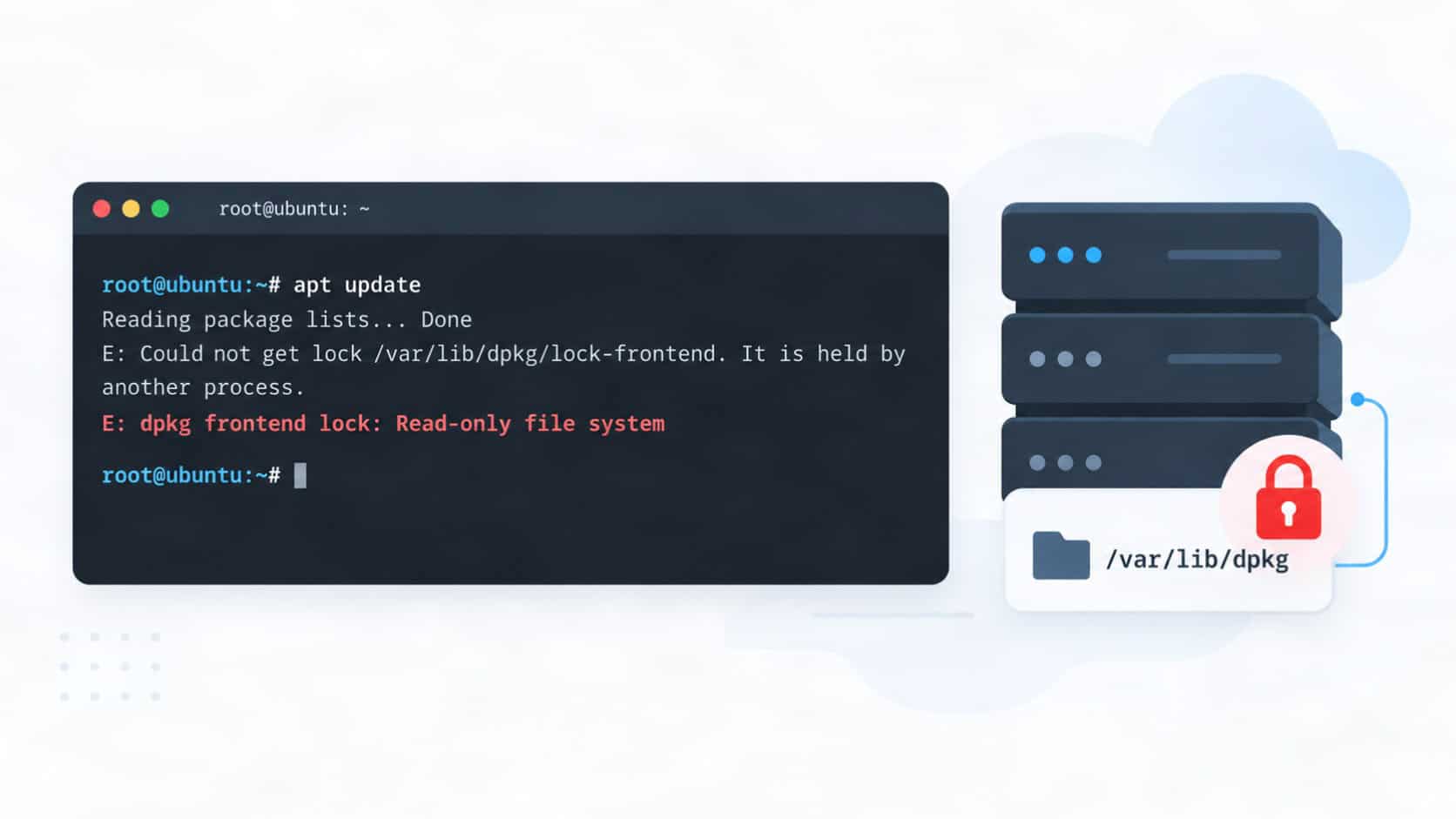
When you install, update, or configure packages on Ubuntu or Debian, you may encounter an error similar to:
dpkg: error: unable to open/create dpkg frontend lock for directory /var/lib/dpkg: Read-only file systemThis error is different from the usual dpkg lock error caused by another apt process.
In this case, dpkg cannot create or modify its lock file because the filesystem containing /var/lib/dpkg is mounted as read-only.
The filesystem may have been mounted read-only intentionally, or Linux may have changed it to read-only after detecting filesystem or storage errors.
Before You Start
You should have:
- Root or sudo access
- A backup or VPS snapshot where possible
- Console or rescue access if this is a remote server
- Enough information to identify the affected filesystem
If this is a VPS or remote server, make sure you have access to the provider’s console before rebooting or repairing the filesystem. Filesystem recovery can make the server temporarily inaccessible through SSH.
Step 1: Check Which Filesystem Contains /var/lib/dpkg
Run:
findmnt -T /var/lib/dpkg -o TARGET,SOURCE,FSTYPE,OPTIONSfindmnt can identify the filesystem containing a specific path and show its mount options.
Example:
TARGET SOURCE    FSTYPE OPTIONS
/      /dev/vda2 ext4   ro,relatime,errors=remount-ro
Look at the OPTIONS column.
If you see:
rothe filesystem is mounted read-only.
A normal writable filesystem should normally show:
rwAlso note the SOURCE and FSTYPE values. You may need them later.
For example:
SOURCE: /dev/vda2
FSTYPE: ext4
On an LVM-based server, the source may instead look similar to:
/dev/mapper/ubuntu--vg-ubuntu--lvDo not run repair commands yet. First determine why the filesystem became read-only.
Step 2: Check for Filesystem and I/O Errors
Check recent kernel messages:
sudo dmesg -T | grep -Ei 'I/O error|EXT4-fs|XFS|BTRFS|read-only|aborted journal|filesystem error' | tail -100You can also check the kernel journal:
sudo journalctl -k -b --no-pager | grep -Ei 'I/O error|EXT4-fs|XFS|BTRFS|read-only|aborted journal|filesystem error' | tail -100Pay particular attention to messages such as:
EXT4-fs errorRemounting filesystem read-onlyI/O errorAborting journalThese messages indicate that the read-only state may be a protection mechanism rather than a simple mount configuration problem.
For ext4, the filesystem can be configured to remount itself read-only after an error is detected.
If you see repeated I/O errors, filesystem corruption, or an aborted journal, do not immediately continue installing packages. Skip to the filesystem repair section below.
Step 3: Check Whether the Filesystem Can Safely Be Remounted Read/Write
If the filesystem is read-only but the kernel logs do not show filesystem corruption or storage I/O errors, you can try remounting it as read/write.
First check the mount point again:
findmnt -no TARGET -T /var/lib/dpkgOn most Ubuntu and Debian installations, this will return:
/In that case, run:
sudo mount -o remount,rw /The remount,rw option tells Linux to change an already mounted filesystem to read/write mode.
If /var/lib/dpkg is on a separate /var filesystem, use its actual mount point instead:
sudo mount -o remount,rw /varDo not blindly use /var. Use the mount point reported by findmnt.
Check the result:
findmnt -T /var/lib/dpkg -o TARGET,SOURCE,FSTYPE,OPTIONSIf the options now contain:
rwthe filesystem is writable again.
You can then continue to the section Repair the Interrupted dpkg Operation.
If the Remount Fails
You may receive an error similar to:
mount: /: cannot remount /dev/vda2 read-write, is write-protectedor the filesystem may continue to show ro.
Do not repeatedly force the remount.
Check the kernel logs again. A filesystem that refuses to return to read/write mode may require an offline filesystem check, or the underlying storage may have a problem.
Step 4: Check /etc/fstab
A filesystem may also be intentionally configured as read-only.
View the active entries in /etc/fstab:
grep -Ev '^[[:space:]]*(#|$)' /etc/fstabLook at the entry for the affected filesystem.
For example:
UUID=xxxx-xxxx / ext4 defaults 0 1A normal root filesystem generally should not be explicitly configured with the ro option for regular operation.
If you find an unexpected ro option, verify why it was added before changing it.
Do not modify /etc/fstab simply because the filesystem became read-only after an error. If the kernel changed the filesystem to read-only because of corruption, changing /etc/fstab will not repair it.
Step 5: Repair an ext4 Filesystem
If the logs show ext4 filesystem errors, or the filesystem cannot be remounted read/write, an offline filesystem check may be required.
First identify the filesystem again:
findmnt -T /var/lib/dpkg -o TARGET,SOURCE,FSTYPE,OPTIONSSuppose it shows:
/dev/vda2with:
ext4Do not run fsck.ext4 against the mounted root filesystem.
The official e2fsck documentation warns that checking a mounted ext2, ext3, or ext4 filesystem is generally unsafe and that its results may not be valid while the filesystem is mounted.
Option 1: Use Ubuntu Recovery Mode
If GRUB recovery mode is available:
- Reboot the server or computer.
- Open the GRUB menu.
- Select Advanced options for Ubuntu.
- Select a kernel entry marked recovery mode.
- Choose the filesystem check option.
Ubuntu’s recovery environment provides an fsck option specifically for checking the filesystem.
For a VPS, the hosting provider’s rescue environment or recovery console may be easier to use.
Option 2: Use a Rescue or Live Environment
Boot the server using a rescue system or live environment.
Confirm that the affected filesystem is not mounted.
Then run the filesystem check against the correct device.
For example:
sudo fsck.ext4 -f /dev/vda2Replace /dev/vda2 with the actual device shown by findmnt.
For an LVM filesystem, it may look similar to:
sudo fsck.ext4 -f /dev/mapper/ubuntu--vg-ubuntu--lvfsck.ext4 will inspect the filesystem and ask before repairing detected problems.
Do not copy a device name from an example. Running filesystem repair against the wrong partition can damage data.
Avoid Using -y Unless Necessary
You may see guides recommending:
fsck.ext4 -f -y /dev/vda2The -y option automatically answers yes to all repair questions.
Although this can be useful in some recovery situations, it removes your ability to review the changes. Ubuntu’s filesystem troubleshooting documentation warns that non-interactive repairs can be potentially dangerous and recommends having a backup where possible.
What If the Filesystem Is XFS?
Check the filesystem type:
findmnt -no FSTYPE -T /var/lib/dpkgIf the result is:
xfsdo not use fsck.ext4.
XFS uses xfs_repair.
From a rescue environment with the filesystem unmounted:
sudo xfs_repair /dev/vda2Replace /dev/vda2 with the actual XFS device.
The XFS documentation requires the filesystem to be unmounted before using xfs_repair.
If the filesystem is Btrfs or another filesystem type, use the repair procedure designed specifically for that filesystem. Do not run ext4 or XFS repair tools against it.
Step 6: Reboot and Verify the Filesystem
After repairing the filesystem, boot the server normally.
Check the mount again:
findmnt -T /var/lib/dpkg -o TARGET,SOURCE,FSTYPE,OPTIONSConfirm that the affected filesystem now contains:
rwinstead of:
roCheck the kernel logs again:
sudo dmesg -T | grep -Ei 'I/O error|EXT4-fs|XFS|BTRFS|read-only|aborted journal|filesystem error' | tail -100If filesystem or I/O errors immediately return, stop package operations and investigate the underlying storage.
Repeated filesystem corruption can indicate a storage device, virtual disk, RAID, filesystem, or host infrastructure problem.
On a VPS, recurring I/O errors may require investigation from the hosting provider because the physical storage is normally managed by the host system.
Step 7: Repair the Interrupted dpkg Operation
Once the filesystem is confirmed writable, repair any packages that were left partially configured.
Run:
sudo dpkg --configure -aThe --configure -a option tells dpkg to configure packages that have been unpacked but are still waiting to be configured.
Next, repair broken package dependencies:
sudo apt-get -f installThe -f or --fix-broken option asks APT to attempt to correct broken dependencies.
Then refresh the package lists:
sudo apt updateFinally, check the package state:
sudo apt-get checkIf these commands complete without the read-only error, the dpkg problem has been resolved.
You can now retry the installation or upgrade that originally failed.
Do Not Delete the dpkg Lock File for This Error
A common solution for package-manager lock problems is to remove files such as:
/var/lib/dpkg/lockor:
/var/lib/dpkg/lock-frontendThat is not the correct first response to:
Read-only file systemThe lock file is not the root cause.
If the filesystem is mounted read-only, dpkg cannot write to /var/lib/dpkg regardless of whether the lock file exists.
Removing lock files also carries additional risk if another package-management process is genuinely running.
If your error instead says:
Unable to acquire the dpkg frontend lockor:
Permission deniedwithout the Read-only file system message, that is a different problem and should be diagnosed as a normal package-manager lock or permission issue.
Troubleshooting
The Root Filesystem Shows rw, but dpkg Still Says Read-only
Do not check only /.
Run:
findmnt -T /var/lib/dpkg -o TARGET,SOURCE,FSTYPE,OPTIONS/var, /var/lib, or another parent directory may be located on a separate filesystem that is still read-only.
Diagnose the filesystem that actually contains /var/lib/dpkg.
mount -o remount,rw / Does Not Work
Check:
sudo dmesg -T | tail -100and:
sudo journalctl -k -b --no-pager | tail -100If you see filesystem or I/O errors, perform an offline filesystem check instead of repeatedly attempting the remount.
fsck Says the Filesystem Is Mounted
Stop, do not force a repair against the mounted root filesystem.
Boot into recovery mode, a rescue environment, or a live system so the affected filesystem can be checked while unmounted.
The Filesystem Becomes Read-only Again After Reboot
This normally means the original problem has not been resolved.
Check for:
- I/O errors
- Filesystem corruption
- Failed or unstable storage
- RAID problems
- Virtual disk or hypervisor storage issues
- Unexpected shutdowns
Take a current backup before continuing if the filesystem is still readable.
There Are No Filesystem Errors, but the Disk Is Full
A full filesystem normally produces errors such as:
No space left on devicerather than:
Read-only file systemCheck disk space with:
df -hand inode usage with:
df -iTreat a full disk as a separate problem instead of assuming it caused the filesystem to become read-only.
Conclusion
The error:
dpkg: error: unable to open/create dpkg frontend lock for directory /var/lib/dpkg: Read-only file systemis primarily a filesystem problem, not a dpkg lock problem.
First identify the filesystem containing /var/lib/dpkg, confirm whether it is mounted read-only, and check the kernel logs for filesystem or I/O errors. A simple remount may be enough if the filesystem is healthy, but filesystem errors should be repaired offline using the correct tool for the filesystem type.
Only after the filesystem is writable again should you repair the interrupted package state with:
sudo dpkg --configure -a
sudo apt-get -f install
This fixes the package state after addressing the actual cause of the error.
