
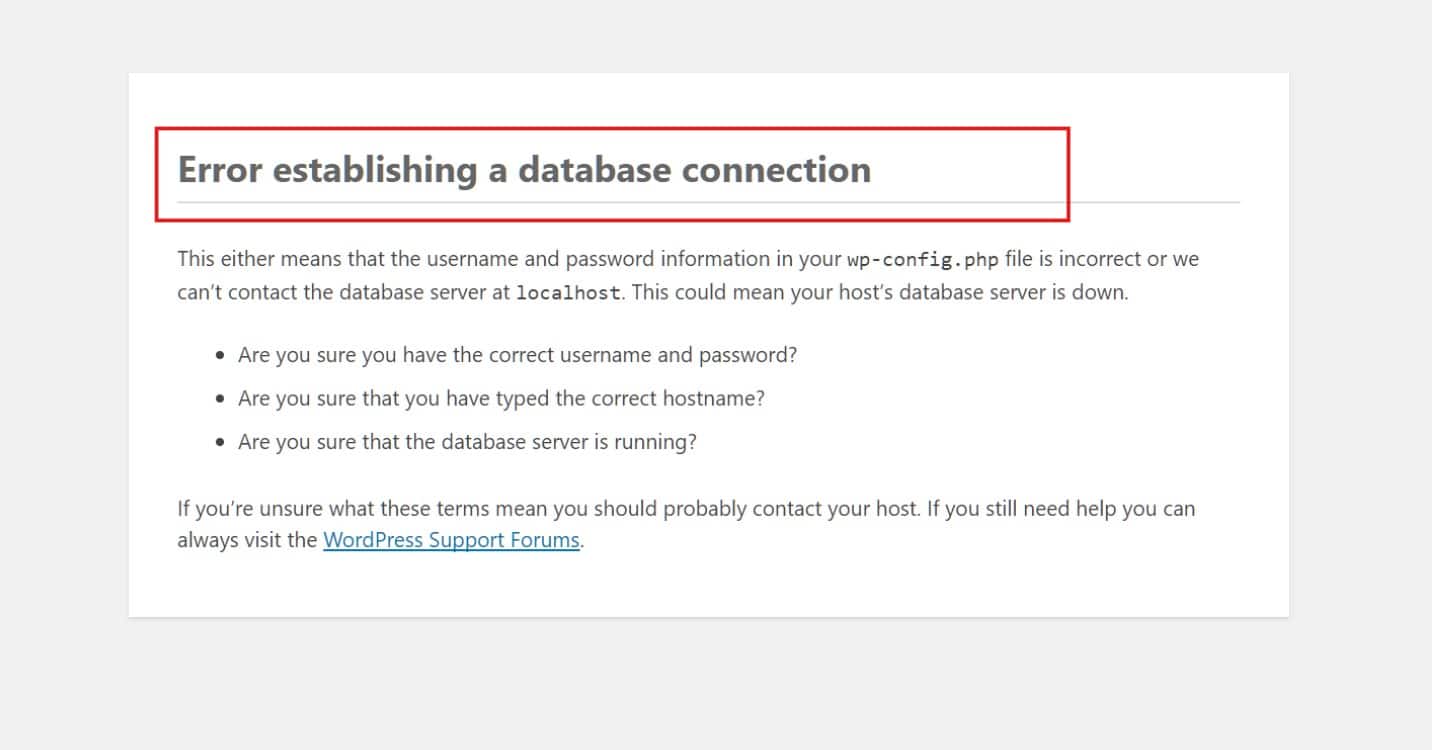
Error establishing a database connection is a common WordPress error that prevents your website from loading. Instead of your homepage or the WordPress admin dashboard, you’ll only see a message saying that WordPress couldn’t connect to the database.
In most cases, the problem is caused by incorrect database credentials, a database server issue, or a corrupted database. The good news is that it’s usually straightforward to fix once you identify the cause.
This guide walks through the most common causes first, so you can start with the fixes that resolve this error for most WordPress sites.
Table of Contents
What Causes This Error
WordPress connects to your database using the details stored in wp-config.php. These include the database name, username, password, and database host. If any of these values are incorrect, or if the database server isn’t responding, WordPress won’t be able to establish a connection. Below are the most common causes of this error, starting with the ones seen most often.
- Incorrect database credentials in
wp-config.php. This is the most common cause, especially after migrating a website or moving it to a new hosting provider. - An incorrect
DB_HOSTvalue. Most WordPress sites uselocalhost, but some hosting providers use a different database host. - The MySQL or MariaDB service is unavailable. This can happen if the database service has stopped, is overloaded, or the server is experiencing high resource usage.
- A corrupted database. Interrupted updates, failed migrations, or faulty plugins can sometimes corrupt one or more database tables.
- Missing database user privileges. If the database or user was recreated, the user may no longer have permission to access the database.
- The database has reached its connection limit. This usually happens during periods of high traffic or when too many connections are left open.
Work through the fixes below in order. In most cases, the problem is resolved by checking the database credentials or confirming that the database server is running.
Before You Start: Take a Backup
Before editing wp-config.php or making changes to the database, create a backup if possible. If your site is already offline, check whether a recent automatic backup is available through your hosting provider.
A recent backup makes it much easier to recover your website if any changes need to be rolled back.
Fix 1: Check Your Database Credentials in wp-config.php
Open the wp-config.php file using cPanel’s File Manager or an SFTP client. This file is located in the root directory of your WordPress installation.
Find the following lines:
define( 'DB_NAME', 'your_database_name' );
define( 'DB_USER', 'your_database_user' );
define( 'DB_PASSWORD', 'your_database_password' );
define( 'DB_HOST', 'localhost' );
Next, verify that each value matches your actual database configuration.
- Log into cPanel and open MySQL Databases under the Databases section.
- Under Current Databases, confirm the DB_NAME value matches an existing database.
- Under Current Users, confirm the DB_USER value matches an existing MySQL user.
- If the password is wrong or you’re not sure what it is, skip to Fix 3.
Even a small typo in the database name, username, password, or host can prevent WordPress from connecting to the database. If you find any incorrect values, update wp-config.php, save the file, and reload your website.
Fix 2: Test the Database Connection Directly
If the credentials in wp-config.php look correct but the error persists, test the connection outside of WordPress to see the real error message instead of WordPress’s generic one.
With WP-CLI (if you have SSH access):
wp db check --debugA working connection returns Success: Database checked. A broken one returns something specific, such as Access denied for user, which points to a credentials problem, or Unknown MySQL server host, which points to a wrong DB_HOST value.
Without SSH access, create a test file in your site’s root folder:
<?php
$test = mysqli_connect('localhost', 'db_user', 'db_password');
if (!$test) {
    die('MySQL Error: ' . mysqli_connect_error());
}
echo 'Database connection is working properly!';
mysqli_close($test);
Replace db_user and db_password with the values from wp-config.php, then visit https://yourdomain.com/checkdb.php in your browser. If you receive an Access denied error, verify your database username and password.
Delete the checkdb.php file as soon as you’ve finished testing. It contains database connection details and should not be left accessible on your server.
Fix 3: Reset the Database User Password
If you’re not sure what the current database password is, or Fix 2 confirmed the credentials are wrong, reset it rather than guessing.
- In cPanel, go to MySQL Databases.
- Scroll to Current Users and find the user matching your DB_USER value.
- Click Change Password, set a new strong password, and save it.
- Update DB_PASSWORD in wp-config.php to match.
- Save the file and reload your site.
Fix 4: Confirm the Database User Has Full Privileges
A database user without the correct privileges can authenticate successfully but still fail to read or write data, which produces the same error. This usually happens after a database is recreated or a user is added without being linked to it.
- In cPanel, go to MySQL Databases.
- Scroll to Add User to Database.
- Select the correct user and database from the dropdowns and click Add.
- On the next screen, select All Privileges and click Make Changes.
Fix 5: Check If MySQL or MariaDB Is Actually Running
On shared hosting, the database service is managed for you, so if Fixes 1 through 4 don’t resolve it, contact support and ask them to confirm the MySQL service status on your account.
On a VPS or dedicated server where you manage the stack yourself, check the service directly:
systemctl status mysqlor, on servers running MariaDB:
systemctl status mariadbIf the service shows as inactive or failed, start it:
sudo systemctl start mysqlCheck the error log for the reason it stopped, since a repeated crash often points to memory exhaustion rather than a one-off issue:
sudo tail -n 50 /var/log/mysql/error.logIf the log shows the service being killed repeatedly under load, the server needs more available memory, not just a restart.
Fix 6: Repair a Corrupted Database
If wp-admin shows a different message, such as “One or more database tables are unavailable” or “The database may need to be repaired,” the tables themselves are damaged rather than the connection. Don’t apply credential fixes for this, use the repair tool instead.
With WP-CLI:
wp db repairWithout SSH access, add this line to wp-config.php, above the line that says “That’s all, stop editing”:
define( 'WP_ALLOW_REPAIR', true );Then visit https://yourdomain.com/wp-admin/maint/repair.php and click Repair Database. Once the process finishes, remove the line from wp-config.php immediately. The repair page has no login requirement while that line is present, so leaving it in place is a security risk.
Fix 7: Rule Out a Connection Limit Problem
If the error only occurs occasionally, especially during periods of high traffic, your database server may have reached its maximum connection limit. This is more common on shared hosting, where multiple websites share the same server resources.
In this case, checking your database credentials or editing wp-config.php won’t resolve the issue. Instead, you need to reduce the number of simultaneous database connections or increase the available server resources.
Using a caching plugin can significantly reduce database load. If your website regularly reaches the connection limit, consider upgrading to a VPS hosting plan, where your database has dedicated resources and isn’t affected by other accounts on the same server.
Preventing This Error in the Future
- Document your database credentials somewhere secure whenever you set up a new site or migrate one, so you’re not reconstructing them under pressure during an outage.
- Double-check DB_HOST specifically after any migration. It’s the value people forget most often since it’s easy to assume “localhost” carries over.
- Run
wp db checkafter migrations, before you consider the job done, to catch a bad connection while you still have the old environment to compare against. - Keep recent backups, ideally automated, so a corrupted database is a restore instead of a rebuild.
- Monitor server resource usage if you’re on a VPS or dedicated server, since memory exhaustion is a common reason MySQL gets killed and restarted unexpectedly.
Conclusion
Error establishing a database connection is usually caused by incorrect database credentials, a database service issue, or a corrupted database. Start by checking the settings in wp-config.php, then work through the remaining fixes until the connection is restored.
If you need assistance troubleshooting database or server issues, a cPanel hosting plan gives you access to the tools needed to manage your website, along with support when server-side issues require further investigation.
