
The “No space left on device” error usually happens for one of two reasons: either the disk is full, or the filesystem has run out of inodes. While both cause the same error, the way you diagnose and fix them is different.
Table of Contents
What Causes This Error?
Disk Full
This is the most common cause. A partition has reached its storage limit, so Linux can no longer create or modify files. Large log files, database backups, uploaded content, Docker volumes, and application caches are often responsible. Once the partition reaches 100% usage, write operations start failing immediately.
Inode Exhaustion
Sometimes the disk still has free space available, but Linux is unable to create new files. This happens when the filesystem runs out of inodes, which are used to keep track of files and directories. In this situation, df -h may show available space even though file creation and write operations continue to fail.
This issue is commonly caused by large mail queues, PHP session files that accumulate over time, application caches containing huge numbers of small files, or temporary files that are never cleaned up. Because the symptoms look almost identical to a full disk, many administrators overlook inode usage during troubleshooting.
Step 1: Check If the Disk Is Actually Full
df -hSample output:
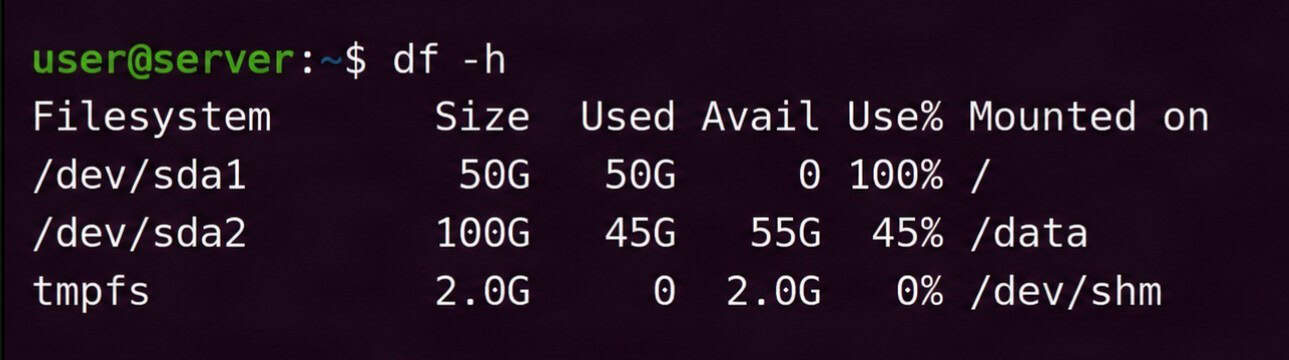
Check the Use% column first. If any partition shows 100% usage, you’ve likely found the source of the problem. Pay attention to the Mounted on column as well, since it tells you where to focus your cleanup efforts. If nothing is at 100% but you’re still seeing write errors, move on to the next step and check inode usage.
Step 2: Check Inode Usage
df -iSample output:
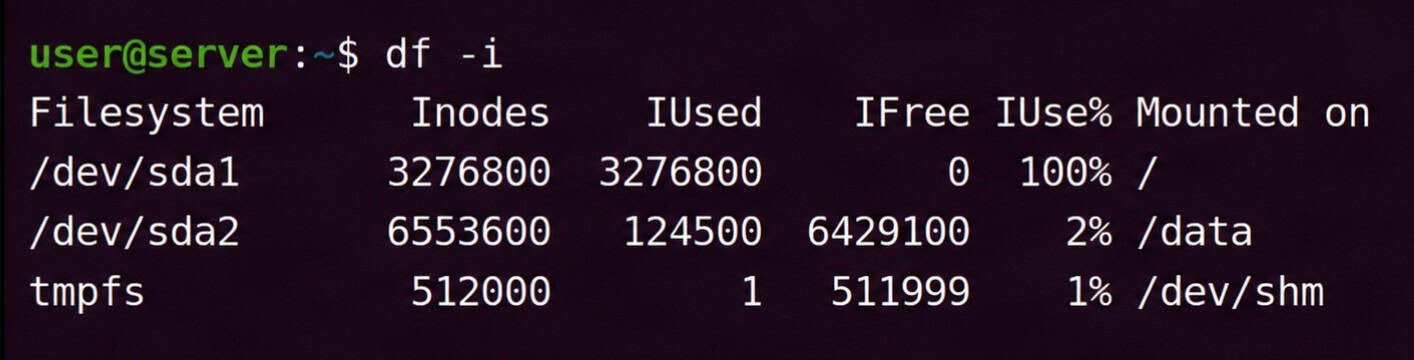
Check the IUse% column. If a partition shows 100% inode usage, Linux won’t be able to create new files even if there is still free disk space available. This is known as inode exhaustion. If you find a partition at 100%, skip ahead to Step 5 to identify what is consuming the inodes.
If both df -h and df -i look normal, the issue may be related to something less common, such as a bind mount problem or an NFS-related issue.
Step 3: Find What Is Consuming Disk Space
Identify large directories
Start from the filesystem root and work down:
du -sh /* 2>/dev/null | sort -rh | head -20Then drill into the largest directory:
du -sh /var/* 2>/dev/null | sort -rh | head -20Keep narrowing until you reach the specific directory or file responsible.
Use ncdu for interactive exploration
ncdu provides an interactive tree view and is faster to navigate on large filesystems:
# Debian/Ubuntu
apt install ncdu

# CentOS/RHEL
yum install ncdu

ncdu /
Find the largest individual files
find / -xdev -type f -printf '%s %p\n' 2>/dev/null | sort -rn | head -20The -xdev flag limits the search to the current filesystem, so mounted filesystems are skipped. This makes it easier to identify what’s using space on the affected partition.
Step 4: Free Up Disk Space
Clean the package cache
Debian/Ubuntu:
apt clean
apt autoremove --purge
CentOS/RHEL:
yum clean all
dnf clean all
Remove old kernels
Debian/Ubuntu:
Old kernels are removed automatically by apt autoremove in most cases. Verify with:
dpkg --list | grep linux-imageThen remove a specific old kernel:
apt remove --purge linux-image-<version>CentOS/RHEL:
rpm -q kernel
package-cleanup --oldkernels --count=1
Truncate bloated log files
Do not delete active log files. Truncate them instead to avoid breaking file handles held by running services:
truncate -s 0 /var/log/syslog
truncate -s 0 /var/log/auth.log
Find all large log files in one pass:
find /var/log -type f -size +100M -lsRemove large files that are no longer needed
find / -xdev -type f -size +500M 2>/dev/nullReview the output before deleting anything.
Clear Docker resources (if applicable)
docker system prune -aThis removes stopped containers, unused images, unused networks, and build cache. Add -f to skip the confirmation prompt.
Step 5: Fix Inode Exhaustion
The goal is to identify the directory holding the large number of small files and remove them.
Find which directory has the most files
This loop counts files per top-level directory:
for i in /*; do echo $(find "$i" -xdev | wc -l) "$i"; done 2>/dev/null | sort -rn | head -10Then drill into the top result:
for i in /var/*; do echo $(find "$i" -xdev | wc -l) "$i"; done 2>/dev/null | sort -rn | head -10Continue until you reach the specific subdirectory with the excessive file count.
Clean Postfix mail queue
postsuper -d ALLTo delete only deferred messages:
postsuper -d ALL deferredClean Exim mail queue
exim -bp | exiqgrep -i | xargs exim -MrmRemove PHP session files
find /var/lib/php/sessions -type f -deleteOn older setups where sessions land in /tmp:
find /tmp -name 'sess_*' -type f -deleteClear temporary directories
Remove files older than 7 days to avoid deleting anything actively in use:
find /tmp -type f -atime +7 -delete
find /var/tmp -type f -atime +7 -delete
A note on inode limits
Inodes cannot be added to an existing ext4 filesystem. If you keep running into inode exhaustion, it may be worth moving to a larger filesystem or switching to XFS, which handles inode allocation differently and is generally less prone to this issue. Since this requires reformatting, make sure you have a full backup before making any changes.
Step 6: Verify the Fix
Recheck both disk space and inode usage:
df -h
df -i
The previously full partition should now show available space or available inodes. Confirm by attempting the write operation that was failing, or restart the service that was generating the error. For web servers and databases, a restart after resolving disk issues is good practice regardless, as some services cache the error state internally.
Prevention
Configure logrotate for all application log files. System logs under /var/log are handled by default logrotate rules, but application-specific logs are frequently not. Add configurations to /etc/logrotate.d/ for any application writing its own log files, and use the compress and maxsize directives to cap file sizes.
Set up disk and inode monitoring. Alert at 80% usage for both disk blocks and inodes. A Zabbix or Nagios check handles this natively, and a simple cron script using df works for minimal setups. Catching the problem before 100% avoids a service outage.
Automate PHP session cleanup. PHP’s built-in session garbage collection is not always reliable under high traffic. A daily cron job handles it more predictably:
0 3 * * * find /var/lib/php/sessions -type f -mtime +1 -deleteConfigure mail server queue limits. Postfix and Exim support queue size limits and bounce handling policies that prevent runaway growth. Review maximal_queue_lifetime and bounce_queue_lifetime in Postfix, or queue_run_max_msgs in Exim.
Use tmpwatch or systemd-tmpfiles to manage /tmp automatically. On systems using systemd, /etc/tmpfiles.d/ rules can enforce automatic cleanup of stale temporary files.
Conclusion
Resolving the immediate error is straightforward once you identify whether it is a disk space problem or an inode exhaustion problem. If your VPS is hitting these limits repeatedly despite regular cleanup, the storage allocation may simply be too small for the current workload. Veeble’s VPS hosting plans offer scalable storage, so you can increase disk capacity without reformatting or migrating. Upgrade before the next outage rather than after it.
