
Follow the steps below to create a snapshot of your VPS from the Veeble Client Area.
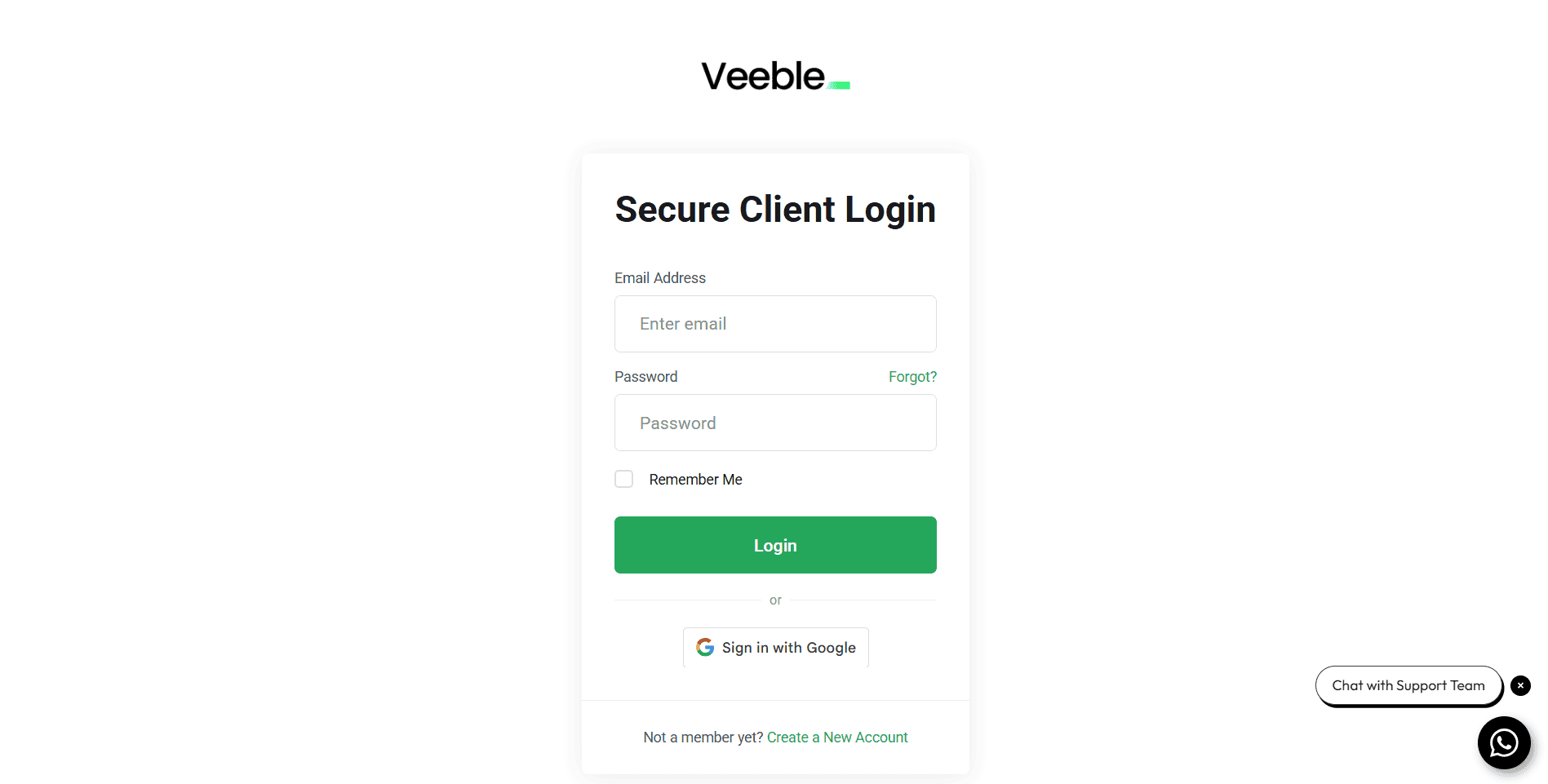
1. Log in to your Veeble Client Area
Once logged in, go to Dashboard.
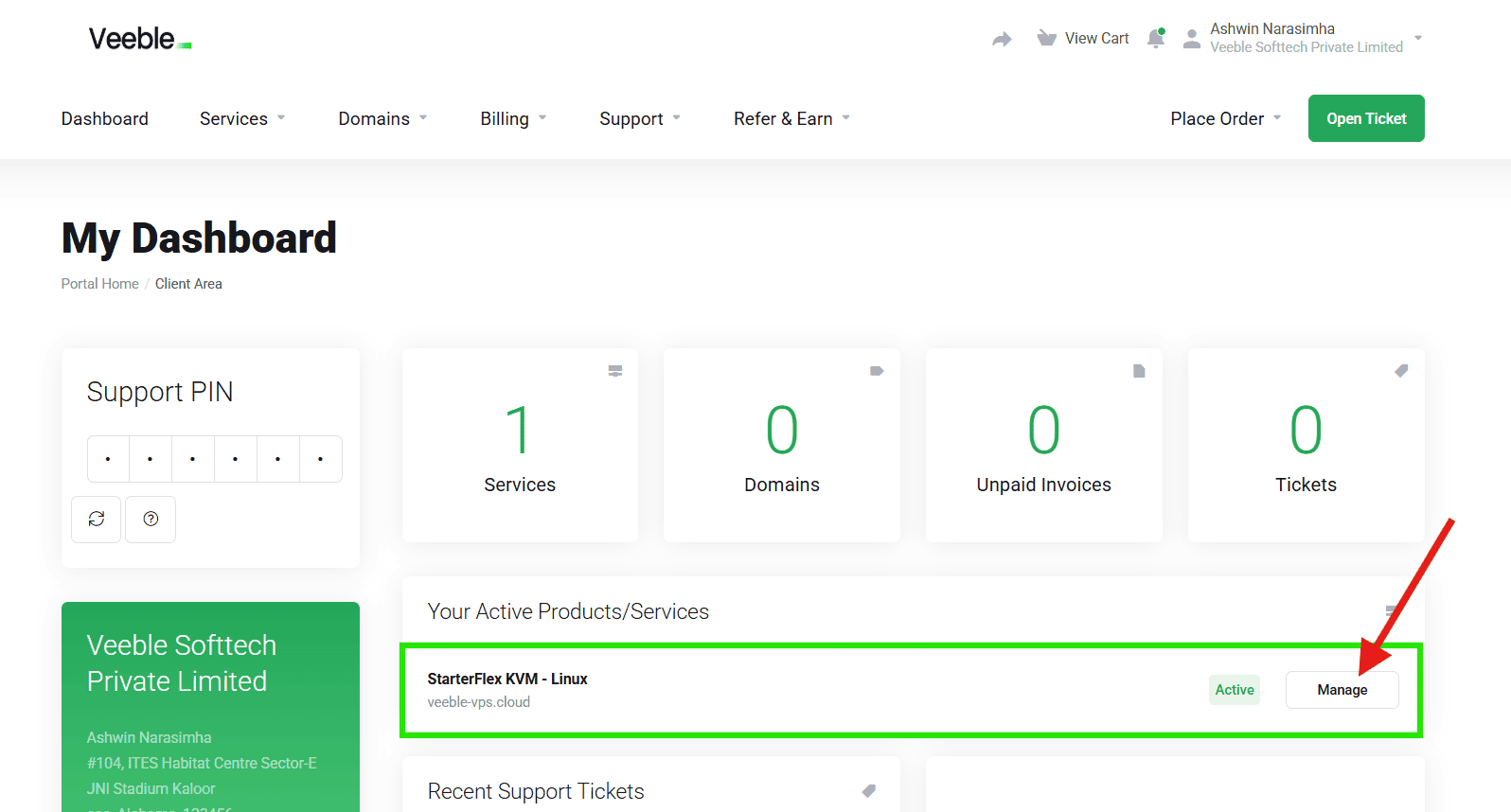
2. Open Your VPS Service
Scroll to Your Active Products/Services and click Manage next to your VPS.
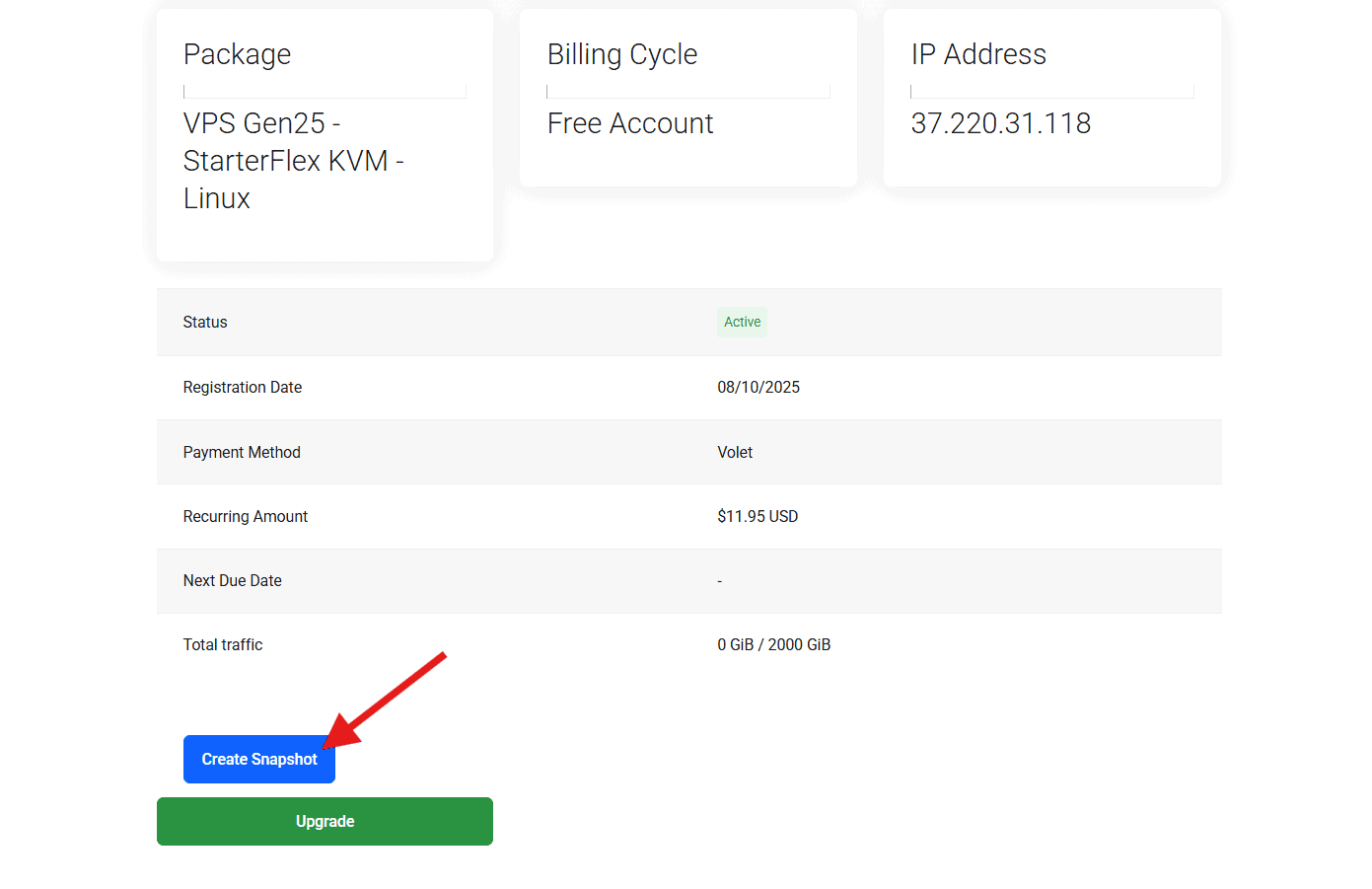
3. Scroll Down to the Bottom
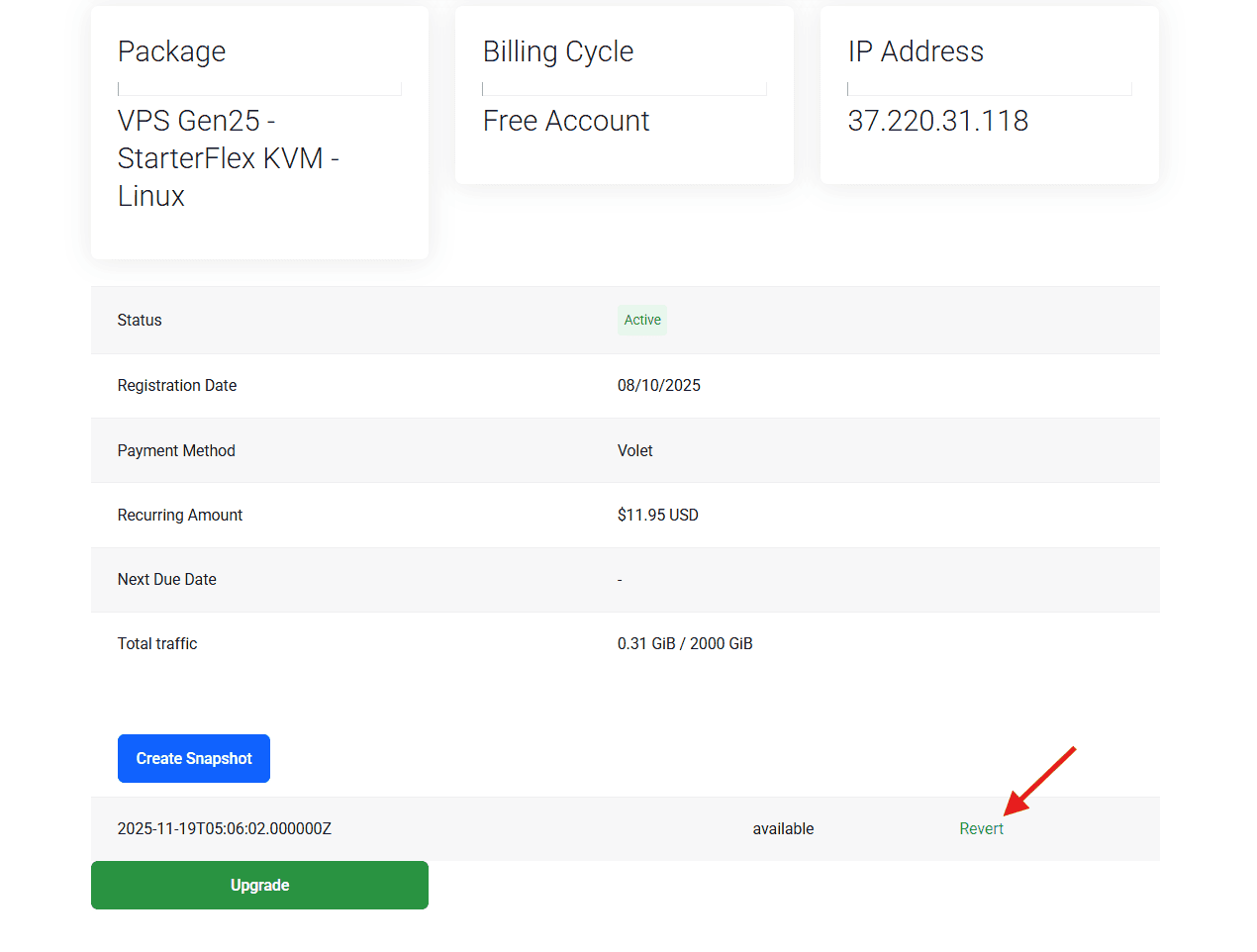
Inside the service page, scroll down until you see the Create Snapshot button.
4. Click “Create Snapshot”
Click the button to generate a new snapshot.
Once created, it will appear below with its timestamp and status.
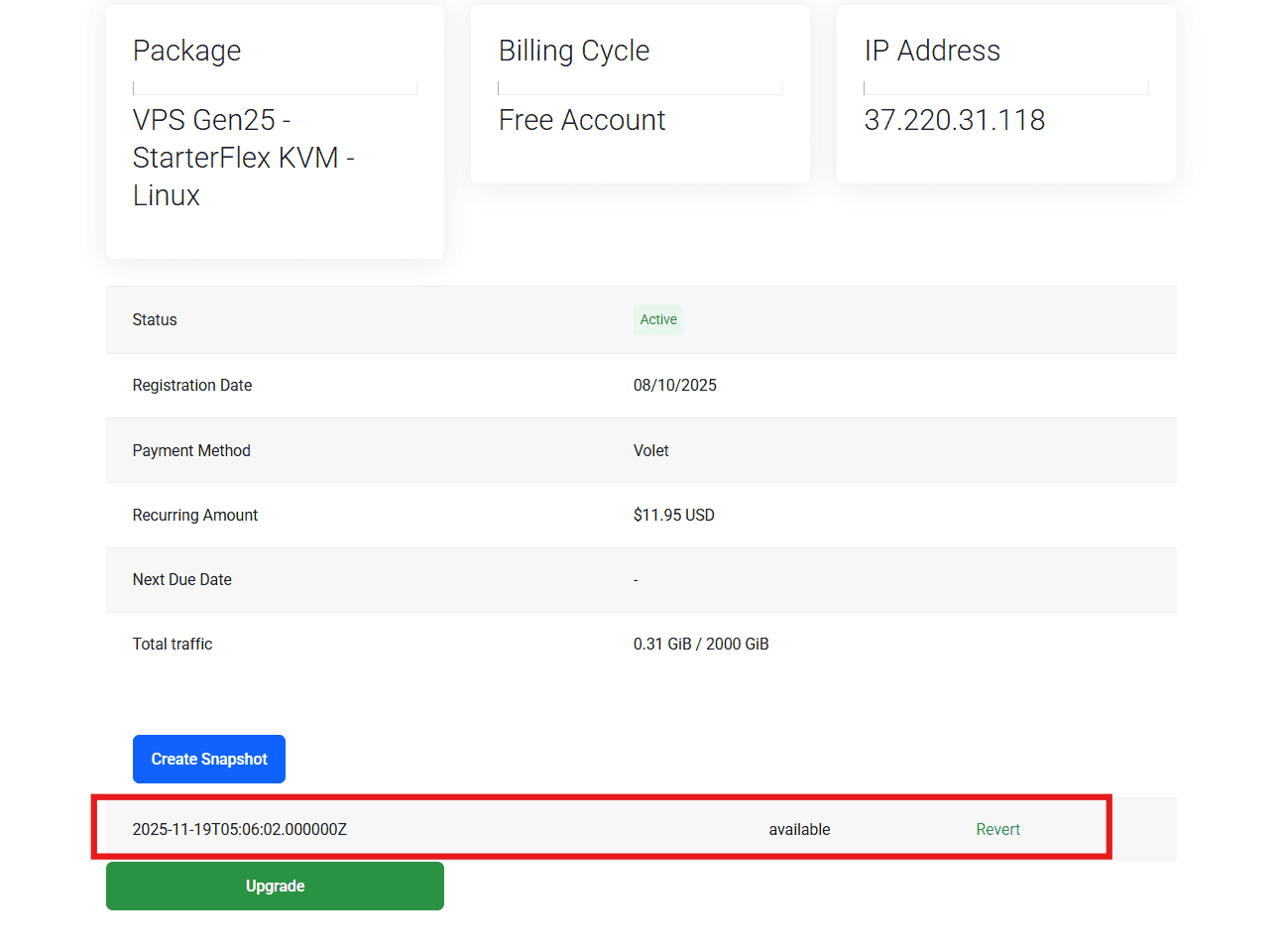
5. Revert to a Snapshot
If you want to restore the VPS to that snapshot, click Revert.
Conclusion
Snapshots help you keep your VPS safe by letting you restore it anytime you need. It’s a quick way to protect your data before making updates or major changes. Creating snapshots regularly ensures you always have a safe point to roll back to if something goes wrong.
Why Choose Veeble VPS?
Veeble’s KVM VPS solutions give you fully dedicated resources, powerful virtualization, and high performance—perfect for developers, businesses, and advanced users. With fast SSD storage, instant provisioning, snapshot options, and global datacenters, Veeble ensures that your VPS stays stable, secure, and blazing fast.
If you’re looking for performance and reliability at an affordable price, Veeble KVM VPS is the ideal choice.
